

Screen reader meaning in one line: it is software that conveys what is on a screen without sight, usually as text-to-speech and sometimes as braille, so blind or visually impaired people can read and operate devices.
A screen reader can only speak what a page or app exposes to it. That is why it sits at the centre of any digital accessibility guide, and why the mechanics below matter to anyone who builds or writes for the web.
What a screen reader is
A screen reader is a software application that tries to convey, non-visually, what a sighted person sees on a display. MDN’s glossary notes that the output is usually text-to-speech, with braille or sound icons as alternatives. The American Foundation for the Blind describes the same idea from the user’s side: programs that let blind or visually impaired users read on-screen text through a speech synthesizer or a braille display.
Wayne State University’s accessibility team describes a screen reader as the interface between the computer’s operating system, its applications and the user. This is the most useful way to think about the tool. It is not a magnifier or a recording of the page. It is a translator that stands between the device and the person, so its output is only as good as the information the device and the content hand it.
Screen readers are also not exotic add-ons. AbilityNet says nearly all computers, tablets and smartphones have a screen reader function built in. Someone curious about the tool can usually try one on a device they already own.
How a screen reader works, stage by stage
The process runs in a loop rather than a straight line, but it is easiest to follow in order.
- Content is exposed. Screen readers do not look at pixels. According to MDN, they interact with dedicated accessibility APIs provided by the operating system, and in browsers they draw on the accessibility object model.
- Reading begins. Wayne State’s guide says a screen reader will typically start at the top of a website or document and read the text, including alternate text for images.
- Output is produced. The text goes to a speech synthesizer or a braille display. When the screen changes, the screen reader speaks the new content automatically.
- The user sends commands. Wayne State explains that users press combinations of keys on the keyboard or braille display to steer what is read. Many people move through a site or document using only the keyboard.
- The user jumps instead of listening to everything. Some screen readers can preview the navigation bar or all the headings on a page, then skip straight to the chosen section.
The stages that matter most carry the main practical lesson. A heading list is only useful when the page marks headings as headings, and a navigation bar can only be previewed when it is built as one. In other words, web semantics are the raw material a screen reader works with. Alt text is what gets spoken for an image, so write it to say what the image contributes to the page.
Speech and braille output
Speech and braille are two outputs of the same reading process, not two separate kinds of program. AbilityNet notes that some screen readers can also be used with a braille display, which is a refreshable device that presents text in braille. Whether a particular screen reader supports braille is therefore worth checking before choosing one.
The range of braille hardware support differs by product. The American Foundation for the Blind lists COBRA Braille, which provides speech output and support for more than 70 braille displays, and BRLTTY, which lets a person using a refreshable braille display reach the Linux/Unix console in text mode. A braille display is an optional extra for most people, but it matters when someone needs text in tactile form rather than spoken form, or when a console-only environment has no graphical interface to read.
Free and paid screen readers
Cost is where screen readers differ most. The American Foundation for the Blind states that prices range from free to $1,200, so the decision is worth making deliberately. For Windows, AbilityNet names JAWS and NVDA as the most popular programs. NVDA (Non Visual Desktop Access) is a free, open source screen reader for Windows only. JAWS is paid-for, though a trial can be downloaded.
| Screen reader | Platform | Cost and availability | Planning use |
|---|---|---|---|
| NVDA | Windows only | Free and open source | A no-cost option for Windows users and for testing web content |
| JAWS | Windows | Paid-for, with a trial. UK prices excluding VAT in January 2025: £200 for a 90-day trial, £699 for JAWS Home, £945 for JAWS Professional | Worth trialling where workplace or application-specific needs apply |
| VoiceOver | Mac, iPad, iPhone, Apple Watch and Apple TV | Built into Apple systems; no installation needed | The obvious first choice on Apple hardware |
| TalkBack | Android devices | Free; no download is required on most Android devices | The default for Android phones and tablets |
| Narrator | Windows 10 and Windows 11 | Built into Windows | A built-in alternative when nothing else is installed |
| ChromeVox | Chromebooks | Built into Chromebooks | The built-in option for Chrome devices |
Figures and availability above come from AbilityNet’s introduction to screen readers and MDN’s screen reader glossary entry.
In short, the free options are NVDA on Windows and TalkBack on most Android devices, and VoiceOver is included with Apple systems at no extra step. JAWS is the one that requires a purchase or trial. AbilityNet adds that the best choice depends on the type of computer or phone you have, your preferred browser and the apps you use. Start with whatever is built into your device or free for your platform, and move to a paid product only when a specific application or workplace requirement calls for it.
Screen readers on phones and tablets
On mobile, the screen reader is part of the device rather than something to install. VoiceOver ships with iOS and macOS, according to MDN, and AbilityNet says it needs no installation and is reached through the Accessibility settings. TalkBack, found on Android devices, works well with the majority of apps and with the internet.
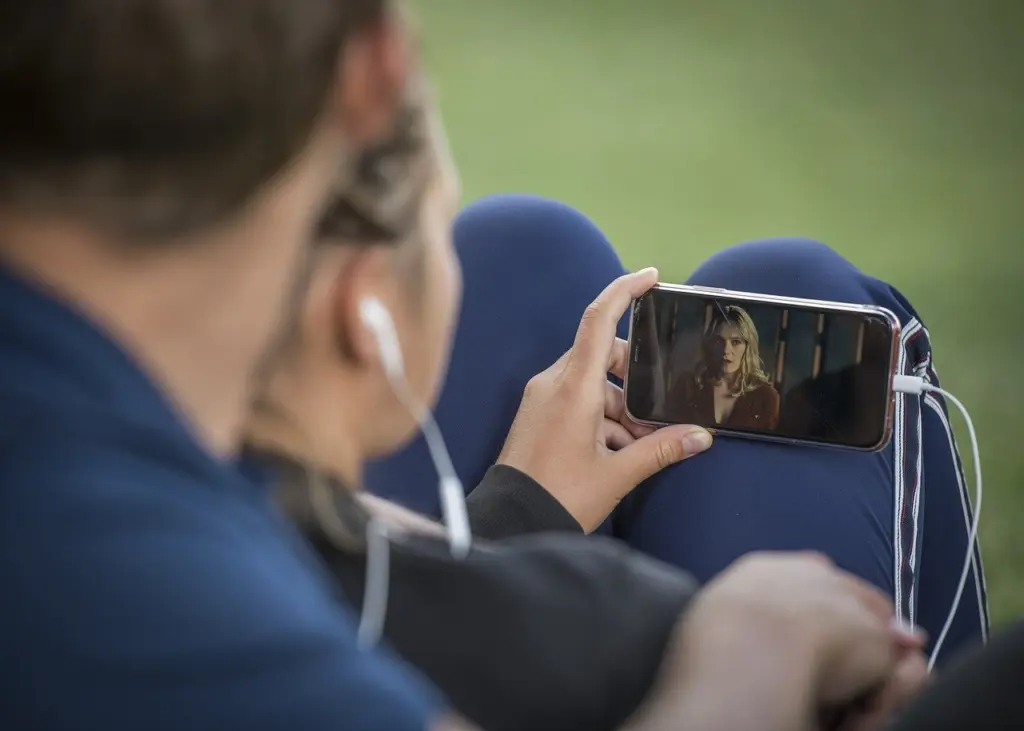
Because mobile screen readers speak aloud, listening privately matters in shared spaces. Plugging in earphones, as in the picture above, keeps that spoken output to the listener. The choice between VoiceOver and TalkBack is rarely a real choice: it follows the phone you own. What does vary is how well individual apps expose their controls, which is why app developers need to test with the screen reader of the platform they build for.
What this means for web content
A screen reader’s usefulness depends on how the content is built. Plain headings let people jump between sections, descriptive alt text gives images a voice, and a logical order lets the reading from the top of the page make sense. These habits cost little to adopt and help everyone who navigates by structure.
- Mark up structure honestly. Navigation bars and headings can be previewed and used as jump points, but only if they exist as real page structure.
- Write useful alt text. It is read out as part of the page, so it should carry the image’s meaning in a short phrase.
- Do not rely on a mouse. Many screen reader users move through content with the keyboard alone, so anything that works only on hover or click leaves them out. Keyboard confidence also shows up in everyday tasks such as the shortcuts in How To Screenshot Using Your Keyboard: Fast Tricks For Windows, Mac, And Chromebooks (2026) – Internetbuttons.
- Test with a real tool. NVDA is free and VoiceOver is already on Apple hardware, so a basic check costs nothing. Since JAWS and NVDA are the most popular Windows programs, they are sensible choices for desktop testing.
Keyboard fluency is a skill in its own right, and practising it builds the same kind of muscle memory that makes screen reader commands quicker. If you are working on that side of things, Master Number Typing: Fast, Accurate Practice Exercises And Tips (2026 Guide) – Internetbuttons offers structured exercises.
Frequently asked questions
Does a screen reader only work inside a web browser?
No. MDN notes that most screen readers operate system-wide, so they can read other applications and parts of the operating system as well as web pages.
Is a screen reader hard to learn?
Basic use can be learned from a few commands, according to AbilityNet, though advanced use takes more time and training. Shortcuts on a keyboard, or gestures on a touch screen, are the main thing to learn.
Can the voice be changed?
Yes. AbilityNet says the technology reads out loud what is on the screen and that users can adapt it to their needs, for example by changing the speech speed or language.