
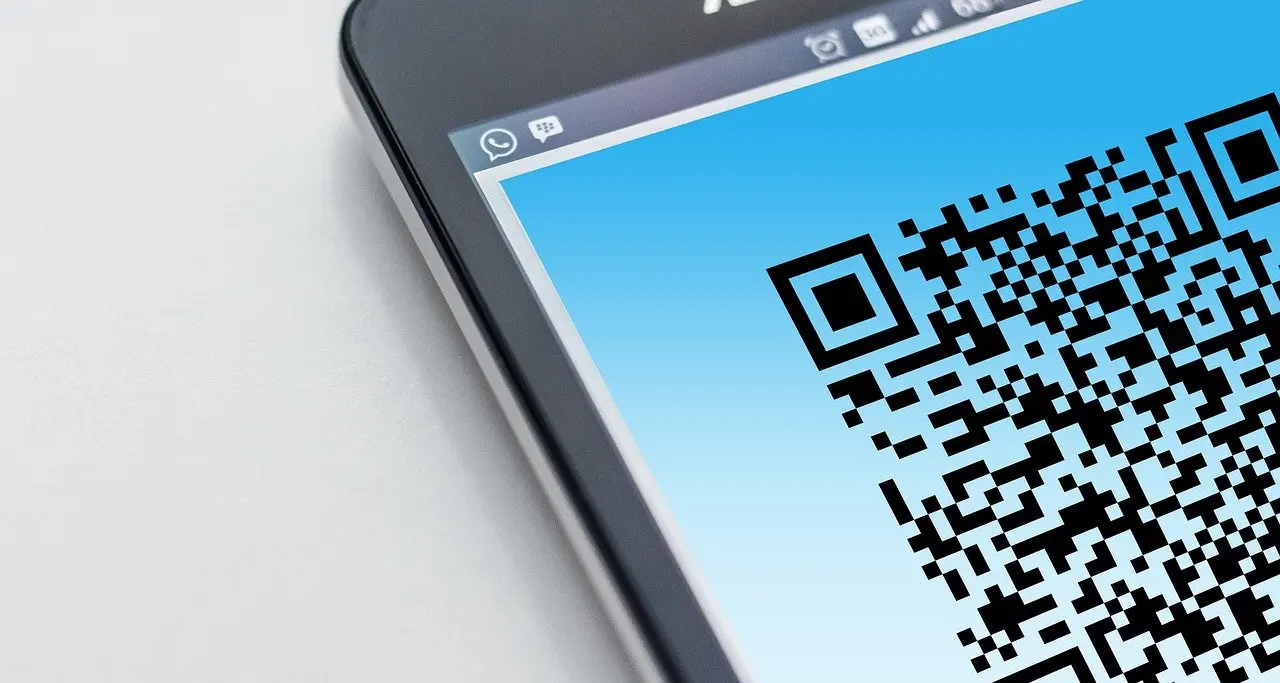
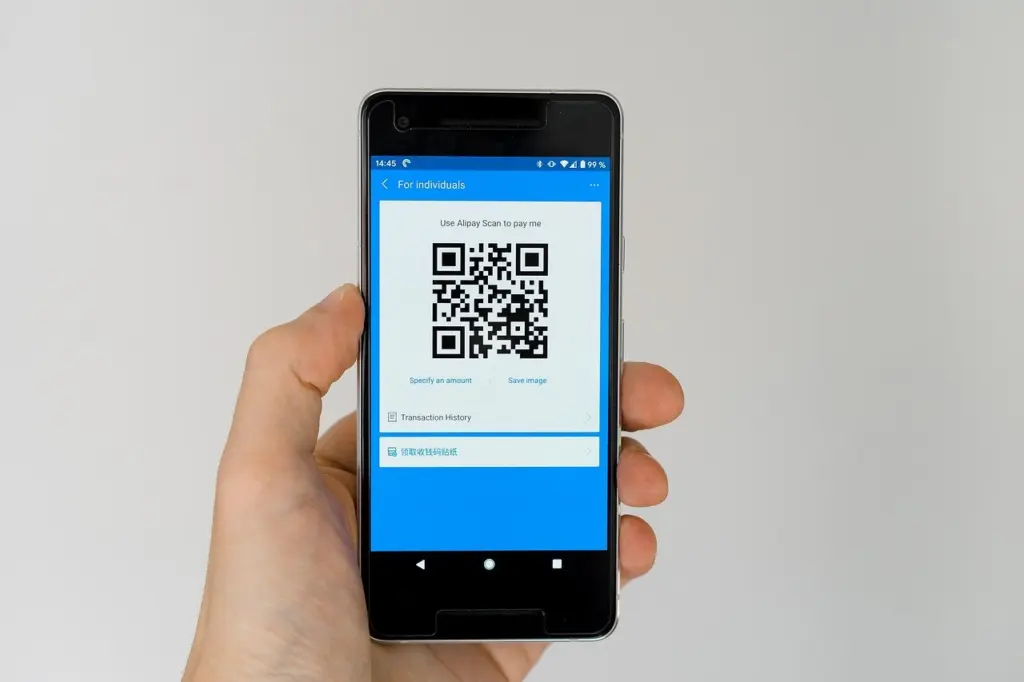
You can scan a QR code that is on your own phone screen. This is how to scan a QR code on your phone screen: long-press the saved image on iPhone, or use Circle to Search or Google Lens on Android.
The scan is the easy part. The link behind the code is what needs care, so pair these steps with the habits in how to spot a phishing email before you open anything.
Three myths about scanning your own screen
A phone camera reads whatever it is pointed at, so many people assume a code on the same screen is out of reach. It is not. The options fall into two groups: tools that read a saved image, and tools that read the live camera view. Which group you need depends on where the code is.
| Common belief | What actually works | Planning use |
|---|---|---|
| You need a second phone | On an iPhone, long-press the image of the QR code to open it. On Android, open the saved image in Google Photos, swipe up and tap Search. | Save or screenshot the code first, then read it from the saved image. |
| You must install a scanner app | Newer smartphones have a QR reader built into the Camera app. The iPhone Camera app recognizes codes automatically, and Control Center has a Code Scanner control. | Try the built-in reader before downloading anything. |
| A code is only a picture, so scanning is harmless | Codes can direct you to malicious websites or phishing pages, so know where a code came from before you scan it. | Judge the sender or the place the code appeared, then read the link before opening it. |
These points come from wikiHow’s QR scanning guide and SlashGear’s phone walkthrough.
Scanning on an iPhone
Camera app and Control Center
The iPhone Camera app automatically recognizes QR codes, so you open Camera, aim it and tap the prompt that appears. If you would rather use a dedicated control, swipe down from the upper-right corner of the screen to open Control Center and tap Code Scanner.
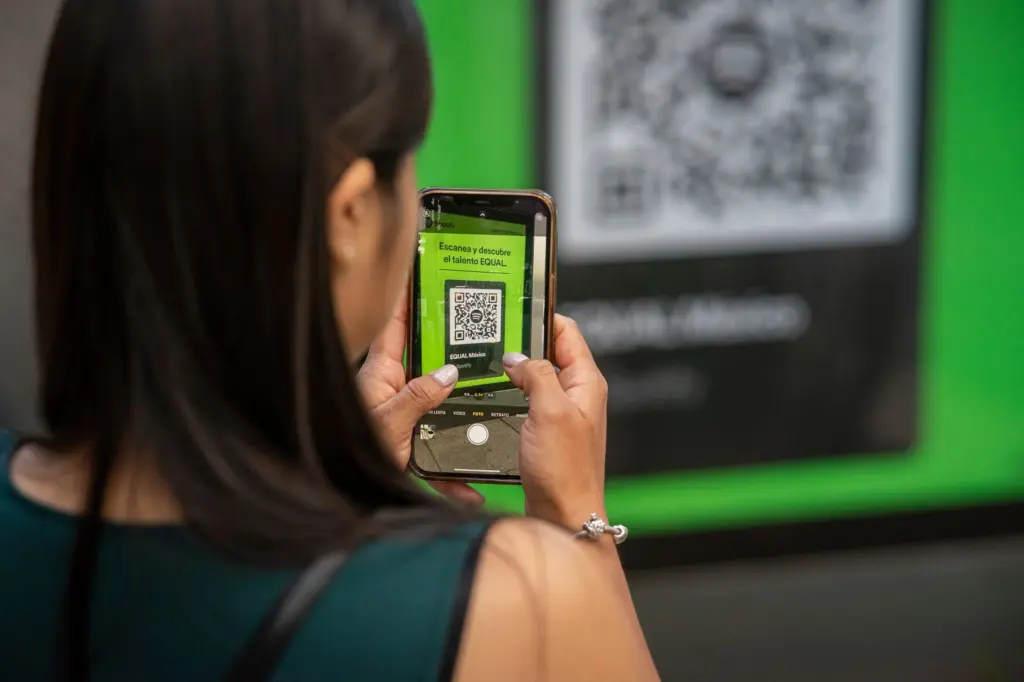
Both routes read the live camera view. They suit a code on a printed page, a poster or another person’s device. They do not help with the screen you are holding, because the camera cannot look at it.
A code saved in Photos
For a code on your own screen, turn it into an image first. Take a screenshot, or use a Save image option if the app offers one. Then open the image in Photos and, as wikiHow puts it, simply long-press the image of the QR code to open it. This is the least fiddly route on an iPhone because it needs no aiming and no second device.
Scanning on an Android phone
Camera and Quick Settings
Business Insider notes that any Android device with a camera can scan QR codes with its camera app. On a Pixel there is also a shortcut: swipe down from the top of the screen to open Quick Settings, then tap Scan QR code. As on the iPhone, these read the live camera view, so they are for codes outside your own screen.
Google Lens
Open the Google app and tap the camera icon on the right side of the search bar to start Google Lens. Lens is a useful second opinion when the Camera app does not react, because it is a separate reader. It also works on a printed code or another screen.
Saved images and Circle to Search
Two Android routes handle a code already on your screen. In Google Photos, select the image, swipe up to reveal more options and tap Search. Circle to Search activates when you long-press the home button or navigation bar on a supported Android device. Circle the code and, per wikiHow, it will scan the QR code and display the link embedded in the code.
Choose Circle to Search when the code is sitting in a message or web page and you do not want to save anything. Choose Google Photos when you already have a screenshot. Both show you the destination, which is the moment to decide whether to continue.
Codes on a computer or another device
If the code is on a computer, Chrome offers a route that needs no phone camera: open the three-dot menu and select Search this tab with Google Lens. On a Mac the picture is different, since there isn’t a built-in way to scan a QR code, and you would need an online scanner. Treat an online scanner like any unfamiliar website and avoid pasting anything personal into it.
Pointing a phone camera at a computer monitor or another phone also works with the readers above. This is the simplest option when the code is on a device you cannot save images from.
Safety checks before you open the link
A scan only decodes the link. It does not tell you whether the link is trustworthy. These habits cover the realistic risks:
- Know the source. wikiHow advises that before scanning any QR code you ensure you know its source to avoid visiting malicious websites. A code from a friend you were expecting is different from one in an unsolicited message.
- Remember the destination can be a trap. SlashGear warns that QR codes can direct you to malicious websites or phishing pages. A page that asks for passwords or payment details after a scan is a warning sign.
- Read the link before tapping it. Circle to Search and the camera prompts show the embedded address first. Stop if it looks unrelated to the sender or the stated purpose.
- Slow down for unexpected requests. A code that arrives unprompted and asks you to act is the pattern to distrust. The guide to how to spot a scam without seeing the screen describes warning signs that do not rely on looking at the page.
So, is it safe to scan an unknown code? Scanning is low-effort, but opening the result is the risky step. If you cannot name where the code came from, do not open the link. For habits that limit what a bad link could reach, see Protect Your Digital Footprint: A Practical 2026 Guide To Staying Private Online – Internetbuttons.
Choosing a method if camera framing is hard
Aiming a camera at a small square is the demanding part of scanning for many people, including those with low vision, tremor or limited reach. Methods that start from a saved image avoid it: the long-press on iPhone, Google Photos Search and Circle to Search all work on a code you already have. If you navigate with a screen reader, prefer these routes, because they use named controls instead of a viewfinder.
Shortcuts also reduce the number of screens to find. Control Center’s Code Scanner on iPhone and the Scan QR code tile in Quick Settings on a Pixel each sit one swipe from any app. Whichever you choose, look for those labels, Code Scanner, Scan QR code or Search, rather than hunting for an icon.
Reading the decoded link is the most important step to make accessible. If you cannot read it comfortably, ask a trusted person to read it aloud before you open it, especially for anything involving payment.
When a scan fails
Failed scans usually come down to the image or the framing. A code that is blurry, damaged or too small may not read, so enlarge or re-capture it. When using the camera, give your camera enough room to see the entire QR code.
If the Camera app fails, try Google Lens or the saved-image route. Business Insider adds that if neither method works, the QR code itself might be invalid. In that case, ask the sender for a fresh code rather than trying more scanners.
Frequently asked questions
| Question | Answer |
|---|---|
| Can I scan a QR code that is on my own phone screen? | Yes. Save the code as an image and long-press it in Photos on an iPhone, or use Google Photos Search or Circle to Search on Android. |
| How do I scan a QR code using a single phone? | Use the saved-image routes above for a code on that phone. For a code elsewhere, the built-in Camera app, Control Center on iPhone or Google Lens on Android reads it directly. |
| Is it safe to scan unknown QR codes? | Not without checking. Codes can lead to phishing or malicious pages, so confirm the source and read the link before you open it. |
| How long does the Camera app take to recognize a code? | It usually takes a second or two, so hold steady before assuming it has failed. |