
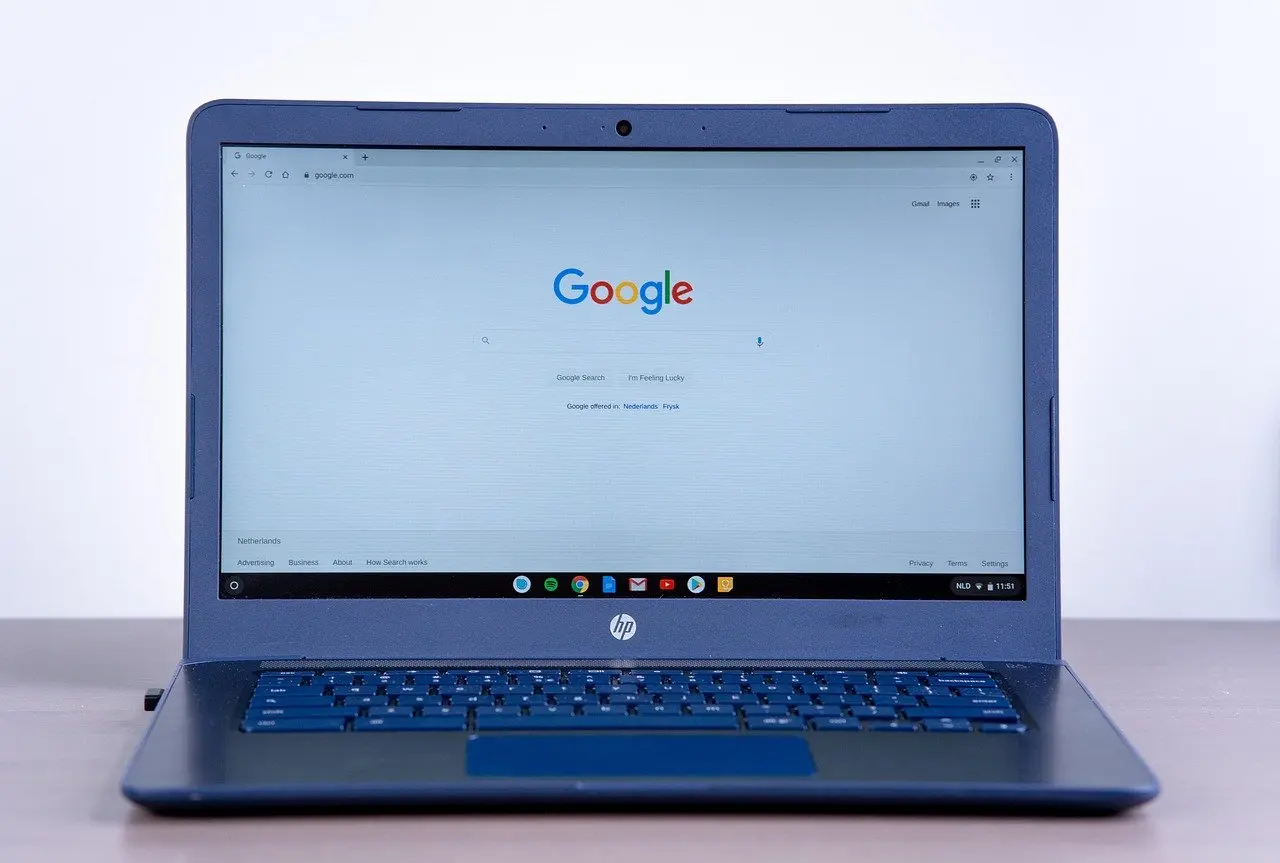
Wondering how to screenshot on Chromebook laptop hardware? Press Ctrl + Show windows for the full screen, or Shift + Ctrl + Show windows to choose a region. The image saves to Downloads by default and is also copied to the clipboard.
Most failed attempts come down to a wrong assumption about the keyboard or the save location, and a few come down to school settings. This guide corrects those assumptions one at a time, and it fits with the wider set of accessible online learning tools that help students capture and keep what they see on screen.
Misconception: every Chromebook uses the same shortcut
Chromebooks do not share one screenshot shortcut, because the keyboard decides which method is quickest. Google’s Chromebook Help says that if your Chromebook has a Screenshot key, you press it. HP adds that only some newer models include a dedicated Screenshot key. On other models the Show windows key, found in the top row of the keyboard, does the job when combined with Ctrl.
The table sets the most common assumptions beside what actually happens, so you can pick the method that fits your device.
| Common assumption | What actually works | Planning use |
|---|---|---|
| Every Chromebook has a Screenshot key | Only some Chromebooks do; press it if yours has one | Check the top row first, then fall back on Ctrl + Show windows |
| One shortcut covers every kind of capture | Ctrl + Show windows for full screen; Shift + Ctrl + Show windows for a partial capture; Ctrl + Alt + Show Windows, then a click on the window, for one window | Learn the full-screen version first and use the toolbar for the rest |
| An external keyboard behaves like the built-in one | Without a Show windows key, press Ctrl + Shift + F5 for a partial screenshot | Keep this combination in mind when docked at a desk |
| Tablet mode means no screenshot | Press the Power button and Volume Down button together | Use it when the keyboard is folded away |
| Screenshots vanish if you miss the notification | They save to Downloads by default and are copied to the clipboard automatically | Look in Files before retaking the shot |
Shortcuts and save behaviour above come from Google’s Chromebook Help and HP’s Chromebook screenshot guide.
Misconception: a screenshot always means the whole screen
A screenshot can cover the full screen, a selected part of it, or a single window. The Screen Capture toolbar offers all three, and Google’s help page describes them as full screen, partial and window options.
Capturing part of the screen
To capture part of the screen, press Shift + Ctrl + Show windows. The Screen Capture toolbar opens, and you choose the partial option. On an external keyboard without a Show windows key, Ctrl + Shift + F5 opens the same toolbar. A partial capture is the better choice when the page includes names, messages or tabs you would rather not share, because only the chosen area is saved.
If the selection is slightly off, the arrow keys fine-tune it. Left and Right arrows set the width, and Up and Down arrows set the height.
Capturing one window
Ctrl + Alt + Show Windows starts a window capture, after which you click the window you want. This suits a document or video call sitting beside other open windows, since the result excludes everything around it.
Misconception: the Screen Capture tool is hidden or only for recording
The Screen Capture tool lives in Quick Settings and takes still screenshots as well as recordings. CNET describes opening Quick Settings by clicking the time on the Shelf and choosing Screen Capture. Google’s help page gives the same route for Chromebooks without a Screenshot key: at the bottom right of the screen, select Settings, then Screen Capture.
The Quick Settings route is the best choice when you cannot remember a shortcut, when you prefer to click, or when you are teaching someone else. It also lets you pick a different save folder, which matters for the next section. Choose the shortcut for repeated captures during a task, and the toolbar when you want to see the full-screen, partial and window options laid out on screen.
Misconception: screenshots are lost unless you saved them
Chromebook screenshots are saved and copied without any extra step. Google states that recordings and screenshots are saved to your Downloads folder, and that they are automatically copied to your clipboard. You can paste a fresh capture straight into a message or document with Ctrl + V, and the file is still there afterwards.
Finding the file
Open the Files app and go to Downloads, as Digital Trends advises. CNET says screenshots can also be found in the Images folder in Files. If one folder is empty, check the other before assuming the capture failed. CNET also notes a holding spot on the Shelf called Tote, which keeps your most recent screenshots within reach.
Choosing a different folder
Downloads is only the default. In the Screen Capture toolbar, open Settings and use Select folder, and Google says new screenshots and recordings are then added to the folder you select. HP notes that this can include a Google Drive folder if you want cloud-based access. Pick a Drive folder when you work across devices, and keep Downloads when you mostly paste images straight into documents.
Editing and sharing without extra software
After a capture, a thumbnail notification appears, and HP says clicking it opens the screenshot in the built-in Gallery app, where you can edit it. That makes quick fixes possible without leaving the Chromebook.
- Paste for speed: because the capture is already on the clipboard, a message, email or document can take it immediately with Ctrl + V.
- Save to Drive for reuse: pointing the capture folder to Google Drive keeps images available on other devices without moving files by hand.
- Retrieve later from Files: a screenshot you did not paste at once remains in Downloads or Images until you delete it.
Captured pages are especially useful for study notes. If you are trying study tools, Top Microlearning Apps In 2026: Fast, Effective Learning On-The-Go – Internetbuttons lists options worth capturing tips from. When you follow a course, Top Free Online Courses With Free Certificates: How To Learn Marketable Skills For Free In 2026 – Internetbuttons covers where such learning leads, and a quick capture of a lesson page keeps a reference you can find later in Files.
Misconception: a school Chromebook that will not capture is broken
A school Chromebook that does not capture is not necessarily faulty, and the lock and login screens are the one limit with a clear explanation. HP states that ChromeOS does not allow screenshots of the login or lock screen for security reasons, and that applies on every Chromebook, school or personal. Sign in first, then use the same shortcuts on any normal screen.

If you are signed in and a capture still fails on a school-issued device, a school-managed Chromebook takes its settings from the school, so its IT team is the right place to ask. Describe which method you tried, whether the Screenshot key, the shortcut or the Screen Capture tool in Quick Settings, so they can see what behaves differently. If the shortcut fails but the Quick Settings tool works, that difference is useful information to pass on. Do not expect a personal-device workaround to be appropriate on school equipment.

Frequently asked questions
| Question | Answer |
|---|---|
| Where is the Show windows key? | HP says it sits in the top row of the keyboard. |
| Is a screenshot copied automatically? | Yes. Google says screenshots and recordings are automatically copied to your clipboard, so you can paste them straight away. |
| Can screenshots go straight to Google Drive? | Yes. Choose a Google Drive folder as the save location in the Screen Capture toolbar settings, as HP describes. |
| Can I screenshot the lock screen? | No. ChromeOS does not allow screenshots of the login or lock screen, according to HP. |