
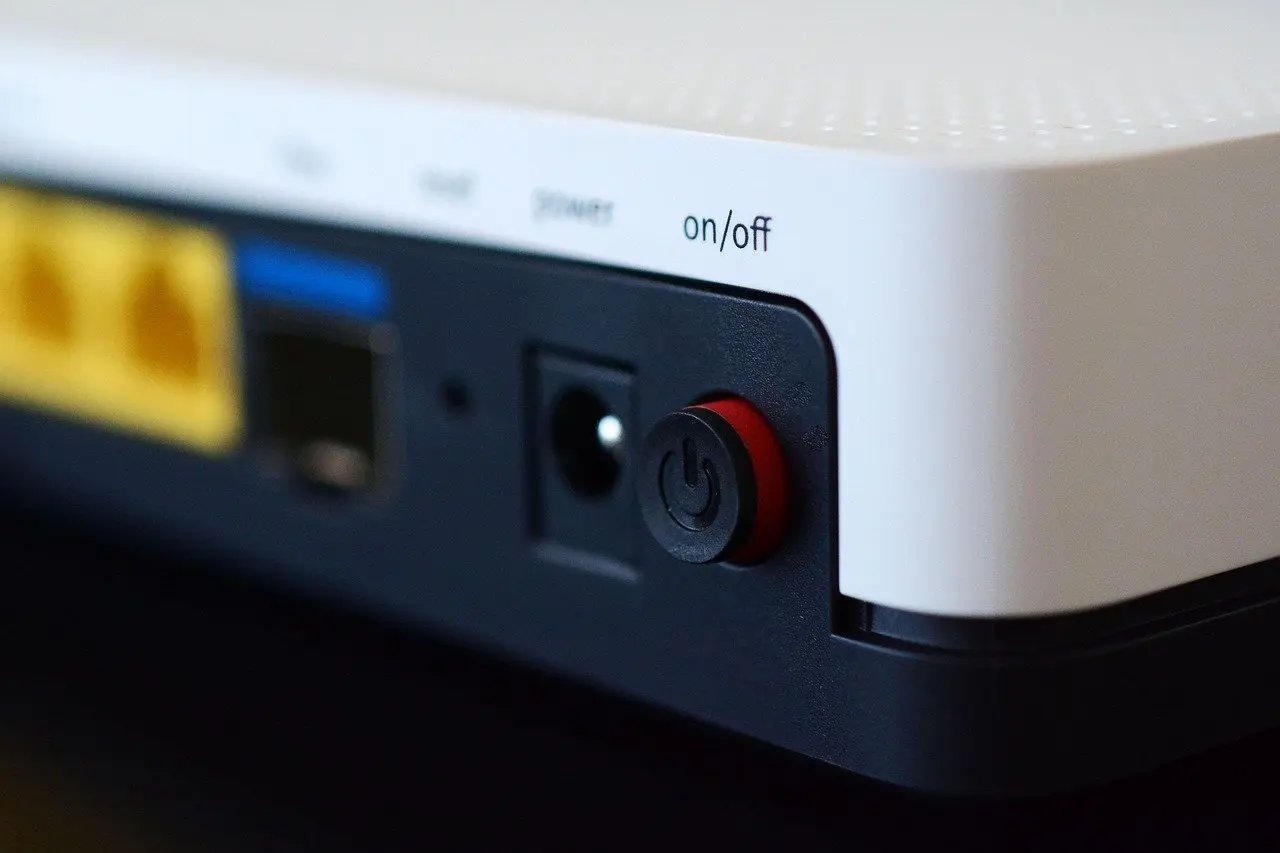
Learn how to restart modem and router in the right order: unplug both, wait about a minute, then power the modem first and the router second, and wait for the lights to settle.
That sequence matches what HomeFi’s troubleshooting advice gives for a separate modem and router. It suits anyone, including people who rely on a helper to handle the equipment. For wider help with everyday technology, see our digital accessibility guide.
What a restart actually does
A restart cuts power to your network equipment and brings it back, so each device starts up and rebuilds its connection. Restarting is also called power cycling, a term Nuvera’s reboot guide uses for the same action.
Two jobs are involved. The modem connects your home to your internet provider’s network. The router shares that connection with your phones, tablets and computers and broadcasts the Wi-Fi. When either job stalls, every device in the home can look offline at once, which is why a restart of both is the sensible first move.
A restart is low-risk because it is not a factory reset. GLO Fiber’s router explainer separates the two: a reset is a different action from restarting or rebooting. Restarting is the one to try first.
Deciding which device to restart
Match the restart to the equipment you have. Most homes fall into one of these setups:
- Separate modem and router. Restart both, one after the other rather than as a single action. HomeFi advises restarting the devices separately when you have a modem plus router setup.
- One gateway from your provider. If a single box does both jobs, there is only one power cable to deal with. Treat it as the modem in the steps below and ignore the router-only steps.
- Mesh system. The modem still comes first, then the mesh units. The mesh section below covers it.
If you are unsure which box is which, look for the cable that runs to the wall or fibre outlet. That box is normally the modem or gateway. The one that only connects to the modem and other devices by network cable is usually the router. Ask a helper to check the labels on the casing if the text is hard to read.
Step-by-step restart
The steps below work for a modem with a separate router. For a single gateway, do steps one to three on that box and then skip to the light check.
Turning devices off
- Find the power button or cable on each device. If a device has a power button, press the power button, not the reset button. Nuvera is explicit about this, because a reset is a different action.
- Switch the router off with its power button and hold until its lights no longer flash or blink, as GLO Fiber describes.
- Unplug the power cable when in doubt. If you are not sure which button is which, Nuvera says disconnecting the power is the better choice. Unplugging also works for devices with no switch.
Check the router’s manual if your model has its own restart procedure. GLO Fiber notes that model-specific steps may differ from the general ones.
How long to leave them off
Leave both devices without power for about a minute. Nuvera and GLO Fiber both advise letting the devices sit without power for a full power cycle before plugging them back in. BroadbandSearch recommends 60 seconds unplugged for both devices, with the modem plugged back in first. Waiting about a minute also gives a helper time to confirm that the lights have gone out.
Plugging back in, in the right order
- Plug in the modem first. BroadbandSearch and HomeFi both say to power the modem before the router, so the router has a working connection to find when it starts.
- Wait for the modem’s lights to settle. Nuvera says stabilising can sometimes take a few minutes.
- Plug in or switch on the router, then give it time to finish starting up.
- Test on a device. Once all the lights look normal, open a web page or app on a phone or computer to confirm the connection.
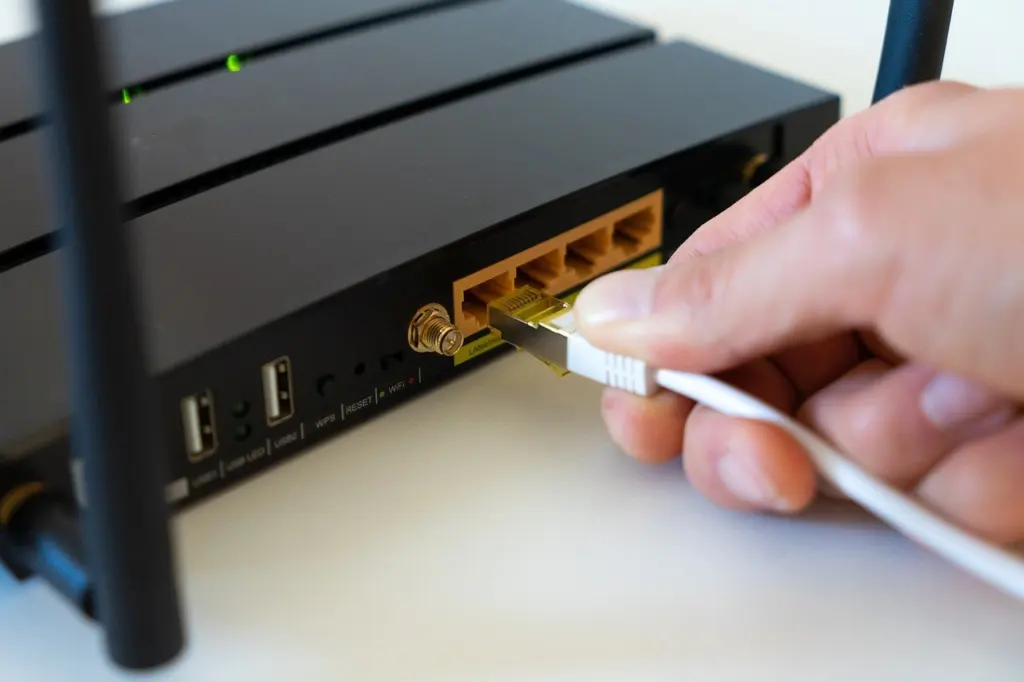
While you wait, do not judge the result from a single glance. Lights flash during startup, and the next section explains what each pattern suggests.
Reading the indicator lights
Indicator lights tell you whether to keep waiting, act or call for help. Colour and pattern together carry the meaning, so ask a helper to read them aloud if you cannot see them clearly. If a light has no symbol, a text label printed beside it, such as Power or Alarm, identifies its job.
| Light cue | Usual meaning | Planning use |
|---|---|---|
| Steady green or white | Normal operation; solid lights indicate a locked, stable status | Test the connection on a device. |
| Red or orange (amber) | A problem or error with the modem, router or gateway | Repeat the restart once, then check cables and contact your provider if the colour stays. |
| Slow, steady blinking at startup | The device is starting up | Keep waiting. If it carries on for around 20 minutes, treat it as stuck. |
| Online or Internet light still flashing more than 10 minutes after a reboot | The modem has not completed its connection | Stop retrying and move to the troubleshooting steps below. |
| Pulsing amber | A firmware update may be running | Do not unplug the device. Wait for it to complete. |
These readings come from HighSpeedInternet.com’s lights guide and BroadbandSearch’s lights guide, and they are general patterns rather than a promise for every model.
The firmware-update rule matters most for restart safety. Cutting power during a pulsing amber light can interrupt an update, so wait for it to finish before starting the power cycle.
Mesh systems and provider gateways
A mesh system sits behind the modem, so the modem still goes first. BroadbandSearch’s guidance for an eero system with no internet connection is to reboot the modem first, then the eero. Follow the same logic with other mesh brands, and use the maker’s app or manual for any unit-specific steps.
Provider gateways add one wrinkle: their lights are often provider-specific. BroadbandSearch lists Spectrum’s blinking blue and white as the modem searching for a signal, where the advice is to wait for it to complete or reboot. For Xfinity, blinking amber or red points to checking the coaxial cable connection at the wall and at the device. A loose cable is a physical check that a helper can do without any technical knowledge.
If you are photographing a gateway’s lights to send to support or to a helper, a clear written description helps too. Our guide on Alt Text Generators: How To Create Accurate, Accessible Image Descriptions Fast (2026 Guide) – Internetbuttons covers how to describe images accurately.
If the internet is still down
If the connection has not returned after the lights settle, work through the checks below in order, stopping as soon as one fixes it.
- Look at the modem’s online light. BroadbandSearch says that if the Online or Internet light keeps flashing more than 10 minutes after a reboot, the modem is not completing its connection. More restarts will not help at that point.
- Look for red, orange or amber. HighSpeedInternet.com says those colours usually indicate a problem or error with the modem, router or gateway.
- Check the cable at the wall. On a cable gateway showing blinking amber or red, check the coaxial connection at the wall and at the device.
- Ask your provider for advice. GLO Fiber suggests contacting your provider before attempting a factory reset, since the reset is a bigger step than a restart.
Tell the agent what the lights show, using the label printed beside each light. That description is more useful than saying the internet is not working.
Connection reliability also matters for people who depend on assistive technology to browse. Our piece on Accessible Web Design: A Practical Guide To Building Inclusive Websites In 2026 – Internetbuttons shows what inclusive sites look like once you are back online.
Frequently asked questions
Is a factory reset the same as restarting?
No. GLO Fiber treats resetting as a separate action from restarting or rebooting. Use the power button or the power cable for a restart, and leave the reset button alone.
Do light colours mean the same thing on every brand?
Not exactly. BroadbandSearch notes that light colours, patterns and meanings vary significantly between manufacturers, providers and device generations. Green or white usually means normal and red or orange usually means a problem, but the label beside each light and the device manual are the final guide.
Will the router reconnect by itself afterwards?
It should. GLO Fiber says a restarted router should automatically resume its internet connection and Wi-Fi broadcasting, so you should not need to re-enter settings.